Thursday, 31 October 2013

0 USE KEYBOARD WITH MOUSE (ON SCREEN KEYBOARD)

USE KEYBOARD WITH MOUSE

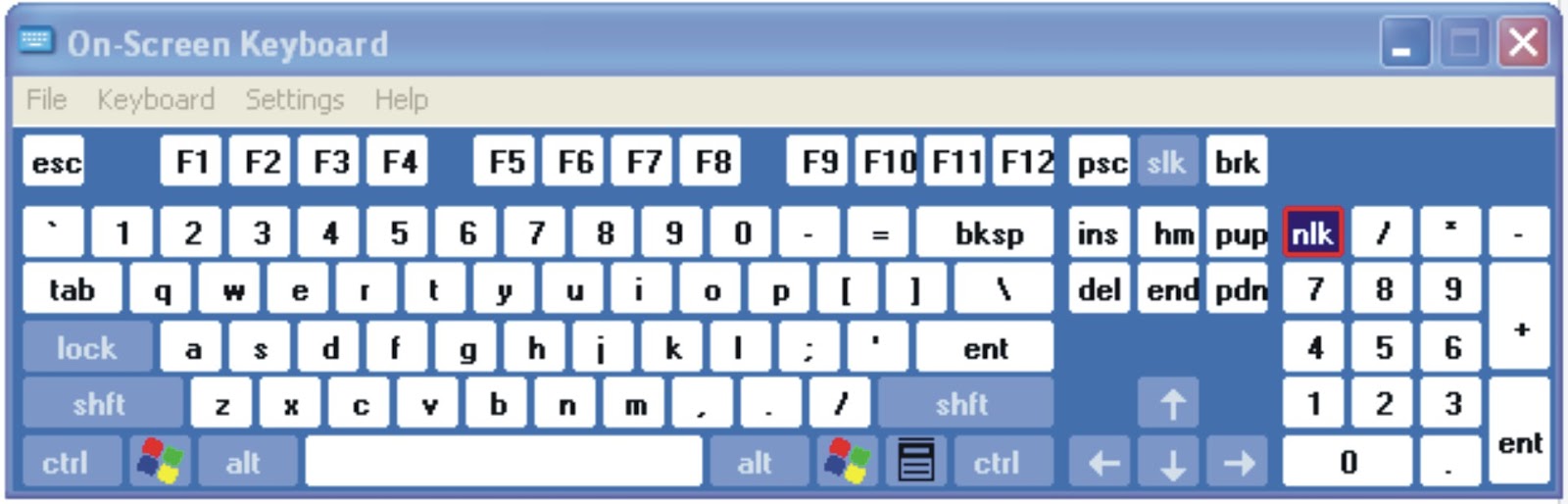
If you feel that your external keyboard is not working properly or some particular key is not functioning then you can use internal keyboard on your desktop screen. This property of keyboard is found in windows xp and seven. Just follow these steps
Go to start menu and press “run”
Type  “osk”
Now press enter.
(note. Don’t use commas)
you will see keyboard on your desktop screen. Now use mouse to click on keys for operation.

0 HIDE FULL DRIVE PARTITION

HIDE FULL DRIVE PARTITION.
It is often seen that many people want to secure their data from other users or their friends. For this purpose they use different methods to hide their data but all these tricks are not reliable. BUT now I am telling you a secure method to hide full drive. You can put all your data in a drive and after applying this trick you will be able to hide full drive. To learn this trick, follow these steps.

  • First of all logged into administrative account.
  • Click on start, open run and type “CMD” and press enter.
  • Type “diskpart” and press enter.
  • After few seconds diskpart utility will appear.
  • Now type “list volume” to show list of volume and press enter.
  • Select the Drive or volume that you want to hide. If you have four drives C,D,E,F, and you want to hid “D” drive, then type “select volume 1”  and press enter.
  • Now in the next step type "remove letter D" to hide this drive.
  • Close CMD and open My computer to check…drive D is not there…
  • Now if you want to show the hidden drive then in step 7 type “assign drive d” and check “My computer”. Drive is back now.
  • Excellent trick, try it now.
image (hide system drive)

Thursday, 17 October 2013

0 Portable Wi-Fi hotspot Free


Turn on Portable Wi-Fi hotspot
Improve your mobile computing experience.
Simple and fast.
**Before running the application configuration is required.
SETTING: Settings->More..->Tethering & portable hotspot->Set up Wi-Fi hotspot
TO USE: Just touch Portable Wi-Fi hotspot icon on / off

Thursday, 26 September 2013

0 Ads Home Guru Free Classified Site Launched


Ads Home Guru : Post Your Classifieds In An Easiest Way-

Ads Home Guru : Free local Classified Ads and Want Ads for Housing, Apartments, Personals, Jobs, Cars, Services and more. Search over 200,000 ads with pictures ! Post your free India Ad now !


Post Your Add Go To - AdsHomeGuru.Blogspot.In

Friday, 20 September 2013

0 How to password protected HTML web pages ?

In this tutorial we're going to build a login system using Anuj Hack Master and PHP.
This means you need a webhosting account which supports PHP!
Our example will have 4 pages:
1. login.php, this page will display the login form.
2. logout.php, this page can be used to logout.
3. verify.php, this page will verify the username/password combination.
4. protected_page.php, an example of a protected page

1. Creating the login pagea) Add a new page using the Site Manager and change its name to 'login'.
b) Make sure the File Extension in Page Properties is set to 'php'!
c) Add a Form, with these properties:
Name: LoginForm
Action: verify.php
Method: POST
Encoding type: <empty>
d) Add an Editbox and set its name to 'username'.
e) Add another Editbox and set its name to 'password'.
f) Add a Push Button and set the buttontype to 'Submit', change the value to 'Login'.

2. Creating the logout pagea) Add a new page using the Site Manager and change its name to 'logout'.
b) Make sure the File Extension in Page Properties is set to 'php'!
c) Open Page HTML, select the 'Start of Page' tab and enter this code:
<?php
session_start();
session_unset();
session_destroy();
?>


3. Creating the verify page
a) Add a new page using the Site Manager and change its name to 'verify'.
b) Make sure the File Extension in Page Properties is set to 'php'!
c) Open Page HTML, select the 'Start of Page' tab and enter this code:
<?php
$usernames = array("user1", "user2", "user3", "admin");
$passwords = array("password1", "password2", "password3", "admin");
$page = "protected_page.php";

for($i=0;$i<count($usernames);$i++)
{
  $logindata[$usernames[$i]]=$passwords[$i];
}

$found = 0;
for($i=0;$i<count($usernames);$i++)
{
   if ($usernames[$i] == $_POST["username"])
   {
   $found = 1;
   }
}
if ($found == 0)
{
   header('Location: login.php?login_error=1');
   exit;
}

if($logindata[$_POST["username"]]==$_POST["password"])
{
   session_start();
   $_SESSION["username"]=$_POST["username"];
   header('Location: '.$page);
   exit;
}
else
{
   header('Location: login.php?login_error=1');
   exit;
}
?>
 

This is the place to add new users.
To add a new user edit this code:

$usernames = array("user1", "user2", "admin", "new user");

Note that we've added a new user called 'new user'
Make sure you add the user's password (in the same position in the password array):

$passwords = array("password1", "password2", "admin", "new password");
4. Creating a password protected pagea) Add a new page using the Site Manager and change its name to 'protected_page'.
b) Make sure the File Extension in Page Properties is set to 'php'!
c) Open Page HTML, select the 'Start of Page' tab and enter this code:

<?php
session_start();
if(!isset($_SESSION["username"]))
{
   header('Location: login.php');
   exit;
}
?>


This code will check whether the user was succesfully logged on, if not then it will redirect the user to the login page.

Wednesday, 18 September 2013

0 How to Change Windows XP Logon Screen background

You can put your favorite image or picture in the background of the logon screen by doing the following methods.
  1. Click the Start button and select “Run”
  2. In the “open” field, type regedit and click ok
  3. In the registry editor, navigate to HKEY_USERS\.DEFAULT\CONTROL PANEL\DESKTOP and double-click the string “wallpaper”
  4. Enter the full path and filename of the .bmp image that you want to use as background (the image must be in .bmp format)
  5. Click “ok” and close the registry editor
Note: Should Restart the computer for changes.
If you want to see the background set in tiled effect with the bitmap then follow the below steps.
  1. Click the Start button and select “Run”
  2. In the “open” field, type regedit and click ok
  3. change the string HKEY_USERS\.DEFAULT\CONTROL PANEL\DESKTOP\TILEWALLPAPER to “1″ instead of “0″
  4. Click “ok” and close the registry editor

Monday, 16 September 2013

0 How to Change the Logon Screen on Windows 7

Some time back Will showed you how to customize Windows XP Login. Windows 7, on the other hand, has the ability to change the logon screen built into it. Well sort of, the functionality exists to make it easy for OEMs to include their custom branding, but nothing stops you to take advantage of it. In this article we shall first look into how you can change the logon screen manually and then we will point you towards some tools that make the job easier and add even more feature rich. So let’s get started.

Manually

Its is always nice to know how things work behind the scenes, what better way to do so then try them out yourself. To change the logon screen manually follow these steps:
  1. Fire up registry editor (Win Key + R and then type regedit, hit enter)
  2. Browse to
    HKLMSoftwareMicrosoftWindowsCurrentVersionAuthenticationLogonUIBackground
    , double click on key named OEMBackground and change its value to 1 (If you cannot find the path or the key go ahead and create it, remember OEMBackground is a Dword)

  3. You just enabled the OEM Background functionality. Now browse to the folder
    %windir%system32oobeinfobackgrounds
    within Windows explorer. %windir% refers to your Windows install directory
    C:Windows
    in most systems. Again the folder path may not exist already, so you can go ahead and create required folders (info and backgrounds are generally not present)

  4. Now put in any JPG file with size less than 256 kb in this folder and rename it to backgroundDefault.jpg. This file will be stretched to fit the screen, so you would want it to match the resolution of your screen so that image doesn’t look bad. You can something like smush.it or Photoshop’s Save as/Save for Web feature to reduce image size.

0 Anuj InfoSoft Special Offer Website @ 2500 only


CALL - +91- 9582550367, 
VISIT - www.anujinfosoft.com

Saturday, 14 September 2013

0 How to disable the Turn Off Computer button in windows XP

Click Start button and type regedit in Run option then press Enter for next.
Here locate the location to:
HKEY_CURRENT_USERSoftwareMicrosoftWindowsCurrentVersionPoliciesExplorer
Here in right side panel, right click to create a new DWORD value with the name NoClose.

Now assign number 1 in value data box and close the registry editor.

Now close the registry editor and restart your computer after any changes to go into effect.

0 DNS Hijacking: What it is and How it Works

DNS hijacking (sometimes referred to as DNS redirection) is a type of malicious attack that overrides a computer’s TCP/IP settings to point it at a rogue DNS server, thereby invalidating the default DNS settings. In other words, when an attacker takes control of a computer to alter its DNS settings so that it now points to a rogue DNS server, the process is referred to as DNS hijacking.
As we all know, the “Domain Name System (DNS)” is mainly responsible for translating a user friendly domain name such as “google.com” to its corresponding IP address “74.125.235.46″. Having a clear idea of DNS and its working can help you better understand what DNS hijacking is all about. If you are fairly new to the concept of DNS, I would recommend reading my previous post on How Domain Name System Works.

How DNS Hijacking Works?

As mentioned before, DNS is the one that is responsible for mapping the user friendly domain names to their corresponding IP addresses. This DNS server is owned and maintained by your Internet service provider (ISP) and many other private business organizations. By default, your computer is configured to use the DNS server from the ISP. In some cases, your computer may even be using the DNS services of other reputed organizations such as Google. In this case, you are said to be safe and everything seems to work normally.

But, imagine a situation where a hacker or a malware program gains unauthorized access to your computer and changes the DNS settings, so that your computer now uses one of the rogue DNS servers that is owned and maintained by the hacker. When this happens, the rogue DNS server may translate domain names of desirable websites (such as banks, search engines, social networking sites etc.) to IP addresses of malicious websites. As a result, when you type the URL of a website in the address bar, you may be taken to a fake website instead of the one you are intending for. Sometimes, this can put you in deep trouble!

What are the Dangers of DNS Hijacking?

The dangers of DNS hijacking can vary and depend on the intention behind the attack. Many ISPs such as “OpenDNS” and “Comcast” use DNS hijacking for introducing advertisements or collecting statistics. Even though this can cause no serious damage to the users, it is considered as a violation of RFC standards for DNS responses.
Other dangers of DNS hijacking include the following attacks:
Pharming: This is a kind of attack where a website’s traffic is redirected to another website that is a fake one. For example, when a user tries to visit a social networking website such as Facebook.com he may be redirected to another website that is filled with pop-ups and advertisements. This is often done by hackers in order to generate advertising revenue.
Phishing: This is a kind of attack where users are redirected to a malicious website whose design (look and feel) matches exactly with that of the original one. For example, when a user tries to log in to his bank account, he may be redirected to a malicious website that steals his login details.

How to Prevent DNS Hijacking?

In most cases, attackers make use of malware programs such as a trojan horse to carry out DNS hijacking. These DNS hacking trojans are often distributed as video and audio codecs, video downloaders, YoTube downloaders or as other free utilities. So, in order to stay protected, it is recommended to stay away from untrusted websites that offer free downloads. The DNSChanger trojan is an example of one such malware that hijacked the DNS settings of over 4 million computers to drive a profit of about 14 million USD through fraudulent advertising revenue.
Also, it is necessary to change the default password of your router so that it would not be possible for the attacker to modify your router settings using the default password that came with the factory setting. For more details on this topic you can read my other post on How to hack an Ethernet ADSL Router.
Installing a good antivirus program and keeping it up-to-date can offer a great deal of protection to your computer against any such attacks.

What if you are already a victim of DNS hijacking?

If you suspect that your computer is infected with a malware program such as DNSChanger, you need not panic. It is fairly simple and easy to recover from the damage caused by such programs. All you have to do is, just verify your current DNS settings to make sure that you are not using any of those DNS IPs that are blacklisted. Otherwise re-configure your DNS settings as per the guidelines of your ISP.

0 What is HTTP Header Injection Vulnerability

HTTP Header

HTTP Header is the component of HTTP requests and responces. Header fields are transimitted with each request and responce and carry additional data about the requests and responces.

See the typical request and responce headers Here at Web-Sniffer.net

HTTP header injection

HTTP header injection is a kind of web application vulnerability which exists on those web applications that generatd HTTP headers based on the input given by users. If it uses User based input in the headers, it can be used for HTTP response splitting, cross-site scripting (XSS), Session fixation via the Set-Cookie header, and malicious redirects attacks via the location header.


I recently found a similar kind of vulnerability in http://canadaedu.apple.com and for this I was also acknowledged by Apple on its website.

It used apache 1.3.33 that was vulnerable to the HTML and malicious javascript injection through  "Expect" header.

See the responce header of the website:

GET / HTTP/1.0
Accept: */*
User-Agent: Mozilla/4.0 (compatible; MSIE 6.0; Windows NT 5.0; .NET CLR 1.1.4322)
Host: canadaedu.apple.com
Cookie: PHPSESSID=3b8026225d719c6945155129c5c7335d
Connection: Close
Expect: <script>alert(411731119275)</script>
Pragma: no-cache
The alert box added in the Expect field could be injected for Cross Site Scripting.