Showing posts with label VLC Tricks. Show all posts

Thursday, 30 May 2013

0 VLC Player Shortcut Key By Ruby Singh

Hi Friends,
Now these days I am watching lots of movies that's why I am posting about VLC. Many people use this for watching movies, but some of them knows shortcut of this media player. Today I am posting full list of VLC shortcuts, I call it Time Saving Shortcuts. 


  1. Z - Zoom mode 
  2. F - Full screen
  3. V - Subtitle Cycle
  4. M - Mute 
  5. Ctrl+Up/Down - To Increase and decrease volume 
  6. Ctrl+Q - To Exit from VLC 
  7. Ctrl+Right/Left - To Skip a 1 minute in the Audio/Video 
  8. Ctrl+Alt+Right and Ctrl+Alt+Left - To Skip a 5 Second in the Audio/Video
  9. T - To Check Remaining time in a Video
  10. S - To stop a video or audio.
  11. Space - To play or pause


Tag- Vlc hack, vlc tricks, vlc crack, vlc shortcut key, Vlc by Ruby Singh

Sunday, 12 May 2013

0 VLC Media Player 2.0.5 New Version Download


Version 2 ("Twoflower") brings a new interface, faster decoding, support for more formats and the ability to play HD and BluRay. It still remains however the most stable, flexible and lightweight audio and video player around today. While other media players will play unusual formats after downloading a codec, or simply refuse to play things,

DOWNLOAD LINKS


Friday, 22 February 2013

0 Play Online Videos For VLC Player


If you are a big fan of VLC and you just love its features and some awesome tricks that can manipulate the whole experience on VLC than this tutorial is just for you as now you can play any online streaming videos in VLC Media Player and you can even use all those amazing VLC features on YouTube videos and make your experience awesome.
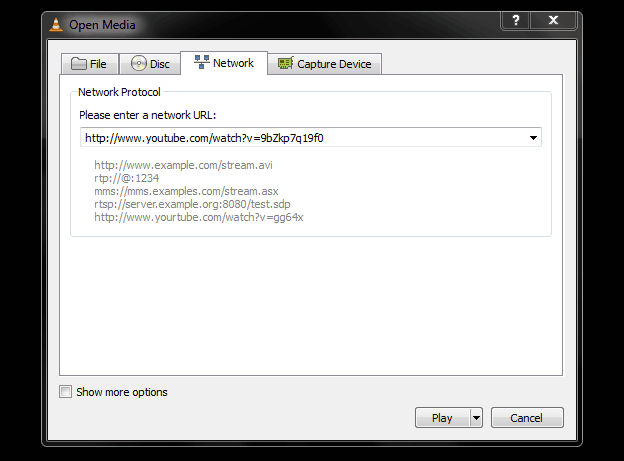
With VLC Network Protocol feature you can play almost any online video easily. You just need to have appropriate link to that video and your video will start playing. Now you can use this trick to play YouTube videos, any other streaming video websites can also be played using this trick.

vlc-network-protocol


Now you just need to follow below steps and you will be ready to play any video streaming online right inside your VLC Media Player.


  • Open any video streaming website and copy the video link you want to play.
  • Now open VLC Media Player and press Ctrl + N to open Network Protocol option.
  • Now paste the link like in the above image and press Play.
  • Now your video will start playing and you can use all those awesome VLC feature here, like changing video speeds and much more.

So now enjoy this awesome trick and do share this post with all your friends, if you find any problems regarding this do comment so that I can fix it out.
Stay Connected :- 


Sunday, 10 February 2013

0 Awesome VLC Media Player Tricks By Himanshu Chauhan


vlc tricksIn this tutorial i will share a simple trick yet interesting trick, i came across while surfing on the internet. I will call it VLC Inception trick. This trick is simple and works on windows xp as well as windows 7. If you know this trick then its great if you don't then lets dive into it.

 How To Do This Trick ?

    1. Open Vlc Media Player.
    2. Then Press Cltr + N
    3. Now Type "Screen://" (without quotes)
    4. Click on Play and watch this simple little trick.

Friday, 28 December 2012

0 Setting Video As Desktop Wallpaper


Ever wanted to set cool videos as yourcomputers Desktop Wallpaper, then you came to right place. Today in this post i will teach you how to set videos as your Desktop Wallpaper with a simple nice little trick and small tool or software that mostly every one has installed on their computer or laptop. This trick works on  Windows Xp as well as it works on windows 7. Go through below post to learn this simple trick.


How to set video as desktop wallpaper ?

   1. Open VLC Media Player. If you don't have it download it frome Here.
   2. Then Go to Tools > Preference Or press CTRL + P and Selecet Video from left panel
   3. Then Choose DirectX video output from output dropdown list
      as shown in below image .
Video wallpaper

   4. Save the changes ans restart VLC Media Player.
   5. Play any video you would like to set as your desktop wallpaper.
   6. Then click on Video and select DirectX Wallpaper from the dropdown list as show in below image.
Video wallpaper


   7. Now Minimize vlc player and you will see your video running on your desktop as wallpaper.
   8. If you want your default wallpaper back then uncheck DirectX Wallpaper from video dropdown list.
   9. Hope you like this simple trick share your thought about this trick in commentsection.