Showing posts with label Google Chrome. Show all posts

Sunday, 5 May 2013

0 8 Most Useful Google Chrome Tips & Tricks


World’s Most Popular Browser

Do you know that Google Chrome is now the world’s most popular browser? According to WikiMedia statistics, 37% of internet users on computers use Chrome, defeating Internet Explorer at 26% and Firefox at 23%. (Here are some interesting statistics). Chrome was first publicly released for Microsoft Windows OS on December 11, 2008 and became world’s most widely used browser in 4 years.
Google Chrome Logo
Chrome’s logo which was updated on March 2011. Credits:Google
Interestingly, Google’s co-founders Sergey Brin and Larry Page had hired several Mozilla Firefox developers and built a demonstration of Chrome! Chrome is also released for other platforms like Apple’s iOS, OS X, Linux and Android.

Fast, Modern and Secure

Comparing with other browsers, Chrome’s interface is minimalistic, which makes it a truly modern web browser.  Application performance and speed in JavaScript processing is one of its strengths. (Check this speed test report!) Chrome also aims to be secure. It periodically retrieves updates of two blacklists for Phishing and Malware, so it warns you when you try to visit a harmful site. If you are using Chrome, I would like to share some useful Google Chrome tips & tricks.

1. Omnibox Tricks

Why do they call Chrome’s address bar as Omnibox? Omnibox is intelligent! You normally use Omnibox for typing website URL, but you can also use it for many other purposes like below. Many of them will seem like Google search.

a) Calculator:

Just type in a formula like 383 + 4813)/ 3^3 * 312, and it will show you the result. For square root, try usingsqrt(). You can also get sin(), cos(), tan(), log() etc. values immediately. Type 5! = to get factorial value of 5.

b) Unit conversion:

Type “1 miles in meters” and it will give you the answer. You can also use numbers of conversions like distance, currency, time, temprature, and so on.
One thing most people don’t know: Chrome (and Google search) also supports complex, multiple unit conversions. Here are some examples:
2 years + 5 months + 10 days + 11 hours = days
50 USD + 15 british pounds + 10 swiss francs + 5 euros = indian rupee
7 kilogram + 2 pound + 45 gram + 5 ounce = kilogram

c) Paste and Go/Paste and Search:

Right clicking on the Omnibar will allow you to directly go to the website or search after pasting the text, depending what (website URL or search keyword) you have in the clipboard.
Chrome omnibar paste feature
Omnibar’s “paste” feature

2. Pin Websites

Use this feature if you use several websites frequently. To pin a web address, right click on the tab title bar and click ‘Pin’. Now, second time when you open the Chrome, all the the pinned websites will open automatically.

3. Search for Settings

Trying to find a setting but could not find? Click on Options button on top right corner and open “Settings”. Type in any setting you are looking from in the search textbox on the top right corner.
Search feature in Chrome settings
Search feature in Chrome settings.

4. Chrome Commands

Just type in any of the following commands in the Omnibox and hit Enter key:
chrome://pluginsSee list of all the plugins installed on Chrome
chrome://bookmarksList all your bookmarks
chrome://downloadsList all downloads
chrome://settingsOpen chrome settings
chrome://versionKnow about currently installed version of Chrome on your PC
chrome://historySee browsing history
chrome://chrome-urlsGet a list of all the Chrome commands like above
For quick access, you can also bookmark (add to favorite) any of above commands like any other URL.

5. Chrome Task Manager

Access Chrome’s task manager by clicking options button (top right corner) -> Tools -> Task Manager. Alternative you can press Shift+ESC key. Using Task Manager, you can know about running tasks, websites and extensions on Chrome. It will also list how much memory (RAM of your computer) each one is using. You can also quickly close any task using it.

6. Easily Save Any Web Page as PDF

Chrome provides easy and handy feature to save any web page in PDF format on your PC. To save a page as PDF, press Control+P when you are on the page you want to save and you will see the Print window. Find the Save button and destination option defaulted to “Save as PDF”. You can also change it to other format and also change options like page layout (Portrait or Landscape), margins, header-footer settings, etc.

7. Icognito Mode

This is a useful feature for your privacy and security of your data. PressControl+Shift+N key to open Chrome in Icognito mode. Websites you view inIcognito mode will not appear in your browser history or search history, and they will not leave other traces, like cookies, on your computer after you close all open incognito windows.

8. Most Useful Short-cut Keys:

Ctrl + KMove the cursor to the Omnibox (address bar)
Ctrl + [Click on a link]Open the link in a new tab
Ctrl + TOpen a new tab
Ctrl + Shift + TRe-open the last tab you closed
Ctrl + NOpen new Chrome window
Ctrl + Shift + NOpen Icognito mode
Ctrl + F4Close current tab
Ctrl + TabNavigate to next tab
Ctrl + Shift + TabNavigate to previous tab
Ctrl + 1-8Pressing Ctrl and any number 1 through 8 will move to the corresponding tab in your tab bar.
Ctrl + 9Switch to the last tab
SpacebarScroll down the page
HomeGo to top of the page
EndGo to end of the page
Ctrl + HShow history
Ctrl + Shift + DeleteClear browsing history
Ctrl + JOpen Downloads window
F11Switch full screen mode on and off
Ctrl + FFind in current page
Ctrl + GFind next match in the page
Ctrl + +Zoom on the page
Ctrl + -Zoom out the page
Ctrl + 0Reset zoom to normal
Ctrl + DBookmark page
Ctrl + SSave the page to your computer
Ctrl + F5F5 refreshes the page, but pressing Ctrl + F5 will reload the page overriding the cache
Ctrl + UView source of the current page
Ctrl + Shift + IOpen developer’s tools interface
Got any other useful Chrome tip or short-cut key? Please feel free to comment below and share.

Saturday, 4 May 2013

0 How to Increase Internet Speed using Google Chrome


    Firefox in our family has been a mainstay, faster than other traditional browsers. Now we have tried Google Chrome and find it much faster than Firefox or Explorer. Before applying this tutorial make sure you have clean up your computer and defragged it. Make sure you have all your spyware and antivirus in place. Make sure to always have back up browser. Below are steps to increase your internet speeds for web surfing. Just follow these tips and see how Chrome improves in performance..

Disables usage statistics of Google Chrome:

    This option is used to help in Development of Google chrome, It send your usage data to Google so that based on that they can further improve Chrome. But if you are worried about system performance you should disable it . To disable this go to tools menu >> Options >> Advanced and uncheck the check box which says Send usage data to Google….

Disable DNS Preload in Google Chrome:

    This will prevent Google chrome to keep DNS info in their cache. Most of time it is unnecessary if you have a good connection of at least 256kbps or more. It is recommended only for slow dial up connection or Mobile users who actually spend a lot f time in DNS query during browsing. To disable this you have to go Options> Under the Hood >> Privacy – There are 2 checkboxes one says ‘Use a web service to help resolve navigational errors’ and second is ‘ use a prediction service to help complete searches and URL’s typed in address bar’.
    You can disable both option or any one of them, first one is used only if you make a mistake while typing any URL while other one is activated by default everytime you start typing a URL.

Disable anti-phishing filter:

    If you are advanced web user and you know how a phishing site look like or you know how to prevent from them you can disable this option. But if you are not at all comfortable working without phishing filters or don;t want to take risk you should keep it as it is . Disabling this not only saves your CPU time but also save your Internet bandwidth. This option can also be disabled from Wrench Icon >>Options >> Under The Hood >> Privacy >> Uncheck ‘Enable phishing and malware protection’.

Clear browsing data regularly:

    While Chrome does not yet make an automatic cleaning of your history, in any browser I’ve tested this is essential if you want to prevent degradation. Go to the Tools menu (the wrench) and choose the “Clear browsing data”. Of course, remember to choose from in the box “Clear data from this period” the option “All” if you will not be eliminated leaving only the latest and old history. Repeat this step from time to time, weekly or monthly, whichever you prefer.

Disable Useless function which we don’t use normally:

    To options that are mentioned below you need to edit the properties of Chrome shortcut which you are using to start the browser. To Change it, right click on the Chrome icon and choose “Properties.” this will open a windows with the “Shortcut” tab, in this tab there is a box called “Destination”. You have to change things in this box itself.

Disable Java box:

  • if you are using Windows Vista it should go like this — : “C:Users\AppDataLocalGoogleChromeApplicationchrome.exe -disable-java”
  • and if you are using Windows XP: “C:Documents and Settings%username% Local SettingsApplication DataGoogleChrome.exe”
    The options which we are adding after the full path of chrome can be used one after the other leaving a space between. You don’t need to write the entire path every time you are using a new options. Here are the option which can be used

Disable-dev-tools:

    This will disable Developers tool which is not used by a normal user for sure.

Disable-logging:

    This will disable looging of browser activity, This log files are useful only in case of Crash or Other error which prevent you from using browsers. if you are experiencing any such problem and need to know the reason you can enable this option. but in general you don’t need these log files. By disabling this you will certainly save CPU RAM and Hard disk space.

Disable-metrics-system:

    This option will disable gathering of Usage Statistics data. This is used by Google and we don’t need it any how so you can safely disable this option.

Disable-metrics-reporting:

    If you disabled Metrics system there is no point in keeping Metrics reporting On, as there won’t be any data to send across. Disable it for sure.

Disable-java:

    Java on the web is rarely used these days and it greatly slow downs your browsers performance. If you not running any online application which uses Java or Java Applets you can safely disable this feature. This will prevent you from playing number of Online Java Games though. (like Yahoo Games)

Disable-java script:

    This will disable all kinds of JavaScript from being run on the web pages you visit. This is not recommended at all as most of the sites these days are using some kind of JavaScript, to display pages. By Disabling JavaScript you will not be able to see these site properly and they will behave improprly. This is why disabling JavaScript is not recommended.

Disable-plugins:

    This will disable all plugins including Flash player and other media player. After applying this modification you won’t be able to see a lot of media sites properly including YouTube. If you understand impact of disabling this go ahead and do it otherwise don;t use this option.

Disable-images:

    This will disable all images on all Webpages you browse, if you are using low bandwidth conection like GPRS or Dial Up it will be very useful for you as it will save a lot of bandwidth for you. This will make your browser an text only browser. So be sure you need it that way before making these changes.
    Tips mentioned above are quite useful in improving response time of your browser. and some of these are good for saving bandwidth as well. If you know something better then Please don't forget to share with us in the comment section below. Enjoy..!!

Tuesday, 23 April 2013

0 Add Password Protected Bookmarks To Google Chrome


if your computer is used by multiple users, you sometimes may want to protect “sensitive” data from the prying eyes of others. While it is recommended to use user profiles, it is quite common that a family uses a single profile for all of its work on the computer for instance.
Bookmarks are usually not the top priority when it comes to protecting data from other users who have access to a system, but if you want to make sure that a couple of bookmarks are not accessible to other users or people walking by you may want to give a solution like Secure Bookmarks for Google Chrome a trial run.
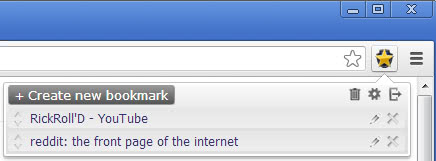
The extension adds an icon to Chrome’s address bar after installation. The first thing you need to do after installation is to set a password to protect the data. Once that is out of the way you can start adding websites to the storage with a click on the icon and the selection of create new bookmark.
secure bookmarks chrome
The program adds the website you are currently on by default which you can modify manually if you want. You can also edit any existing bookmark at any time.
You may have noticed by now that the extension ignores the current bookmarks. An import is missing unfortunately which may mean that you need to open existing bookmarks in Chrome again to add them to the secure bookmarks extension.
To open an existing bookmark, simply left-click on the icon and then on the bookmark. This opens it in the same tab, if you prefer it to open in a new tab, hold down the Ctrl-key while you click on the bookmark.
The order of bookmarks can be ordered via drag and drop but there is no option to use folders to sort bookmarks. The options let you export and import bookmarks to the browser, and change the password.
The main menu has an option to clear all bookmarks at once and to sign out which you can do to block access to the bookmarks while Chrome is open. You are automatically signed out when the browser is closed.

Sunday, 3 March 2013

0 View All Saved Password In Google Chrome

google chrome hackedPreviously i had showed you hack saved password in google chrome. In this post i will show you same thing but with different method suggested by one of reader of Hack Master Help name Aryan. This trick is simple yet very powerfull to view or hack saved password in google chrome. It does not matter for which website the password is saved it will work on all of them. It will work on Facebook, Gmail, Yahoo, twitter and many more. If you get your hands on your friend computer you can hack their password with this simple little trick. It does not require any software or addons to be installed on your computer. Lets get started.


HOW TO VIEW SAVED PASSWORD IN GOOGLE CHROME ?

  1. Open Google Chrome
  2. Go to Settings (Its on the Right Corner)
  3. Then Click on Advance Settings
  4. Scroll Down and their will be password and forms from their click on Manage saved password.
  5. Then list of all websites whose passwords are saved on browser will be listed.
  6. Click on show to view those passwords
  7. Enjoy!!

0 Hack Saved Password In Google chrome


In this post i will show you a simple but very powerfull trick to view or hack saved password in google chrome. It does not matter for which website the password is saved it will work on all of them. It will work on Facebook, Gmail, Yahoo, twitter and many more. If you get your hands on your friend computer you can hack their password with this simple little trick. It does not require any software or addons to be installed on your computer. Lets get started.


HOW TO DO THAT ?


1. Open any website where password is saved by user. Here i will demonstrate with facebook but it will work on any website.
2. Right click on password(Dots or asterisks) as shown in below image.
3.Then click on Inspect element.
4.Then change Password to text as shown in below picture.
  • Before changing it will look like below:


  • After changing it will look like below:


5. Done ....