Showing posts with label Windows. Show all posts

Thursday, 9 January 2014

0 How to Change Your Logon and Boot Screen in Windows XP

Start changing your windows xp Logon  and boot screen perfectly by yourself.You can change your XP logon and boot scree with logon loader and bootskin software.You can also change your logon background without  using  any software.Now I share how you change your  XP logon and boot screen with software.This so easy to change your screen with software.Follow the following commands to change your windows logon and boot screen :.. 

First of all click here and then and download it and then install it.
Now click here to download the "Logon loader" software to change your XP logon screen.

Now install it then go to www.deviantart.com

Now search there "windows XP logon" .
Now download one by your choice.
Now open your "logon loader " software and click on"select a logon screen "
Now select your logon which you dowload from www.deviantart.com


It will like this.And show the preview.

Now restart your computer and see your logon screen is changed.

#Now for changing your boot screen follow the following command :..
First of all click here to download "bootskin" software.
Now install it.
Now select anyone logon for your for your boot screen.
And click there apply.You can also see the preview of the boot screen.Ii wiil like this one.
Enjoy it from now.

Saturday, 30 November 2013

0 Remove Windows Password Windows 7 & Vista

Remove Windows Password: Windows 7 & Vista:
Click Start,
type netplwiz,
and press ENTER. -
See Next
Windows XP:
Click Start>Run,
 type control userpasswords2,
and press ENTER. -
End

Wednesday, 27 November 2013

0 How To Hack Server On Linux "Linux Server Hacks" Complete Book Free Download

Linux Server Hacks is a collection of 100 industrial-strength hacks, supplying tips and tools that solve practical problems for Linux design administrators. Every hack can be read in just a few protocol but will save hours of searching for the advantage answer. Some of the hacks are subtle, dozens of them are non-obvious, and all of them demonstrate the power and springiness of a Linux system. You'll discovery hacks devoted to tuning the Linux pit to type your diagram run more efficiently, as well as using CVS or RCS to track the change to design files. You'll learn possibility direction to do backups, how to use plot monitoring tools to odor plot virtue and a mixtures of secure networking solutions. Linux Server Hacks also helps you manage large-scale Web installations jogging Apache, MySQL, and other open source tools that are typically sliver of a Linux system.

Sunday, 3 November 2013

0 How to Change the Root Password in Linux

In Linux and other Unix-like operating systems the user "root" is the system super-user. Similar to the administrator account(s) in Windows, root has complete control over the system. The following article will describe how to change the root password in Linux.

Steps


  1. anujhackmaster
    1
    Log on as root. This can be achieved by typing "su" or "su root" at the terminal prompt.
  2. 2
    Enter the current root password. Don't be alarmed if as you type nothing is displayed at the prompt. This is intentional for security reasons.
  3. 3
    Type the command "passwd" at the root prompt.
  4. 4
    Enter your new password and repeat it at the confirmation prompt.
  5. 5
    Logout using the "exit" command
    .

Thursday, 31 October 2013

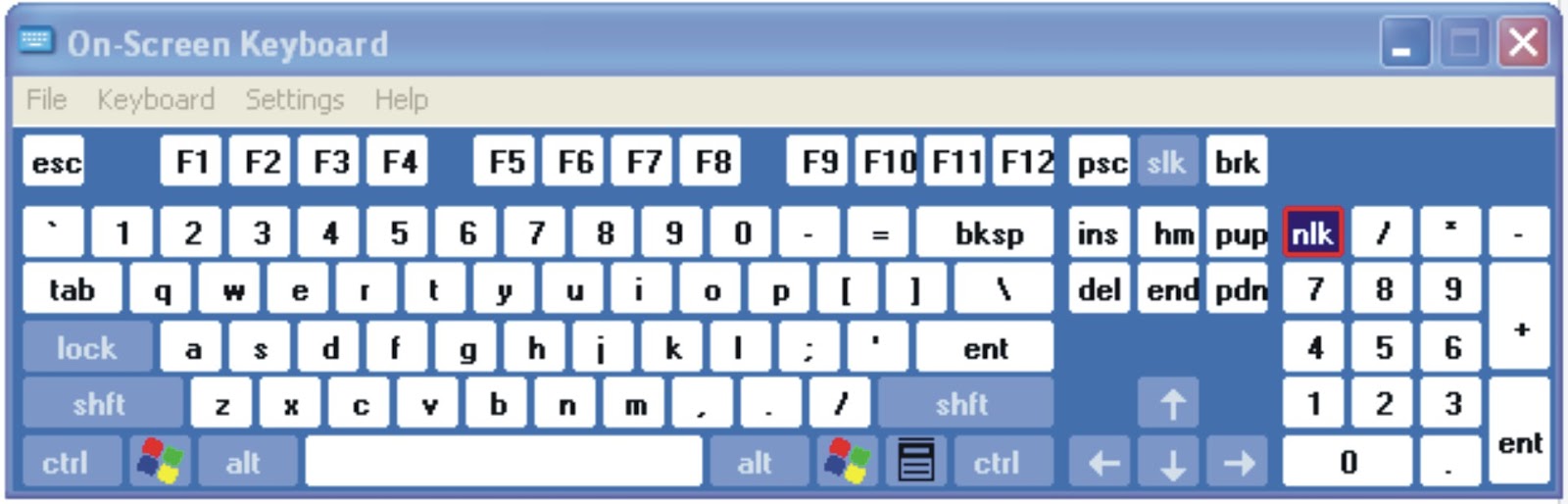
0 USE KEYBOARD WITH MOUSE (ON SCREEN KEYBOARD)

USE KEYBOARD WITH MOUSE

If you feel that your external keyboard is not working properly or some particular key is not functioning then you can use internal keyboard on your desktop screen. This property of keyboard is found in windows xp and seven. Just follow these steps
Go to start menu and press “run
Type  “osk
Now press enter.
(note. Don’t use commas)
you will see keyboard on your desktop screen. Now use mouse to click on keys for operation.

Wednesday, 18 September 2013

0 How to Change Windows XP Logon Screen background

You can put your favorite image or picture in the background of the logon screen by doing the following methods.
  1. Click the Start button and select “Run”
  2. In the “open” field, type regedit and click ok
  3. In the registry editor, navigate to HKEY_USERS\.DEFAULT\CONTROL PANEL\DESKTOP and double-click the string “wallpaper”
  4. Enter the full path and filename of the .bmp image that you want to use as background (the image must be in .bmp format)
  5. Click “ok” and close the registry editor
Note: Should Restart the computer for changes.
If you want to see the background set in tiled effect with the bitmap then follow the below steps.
  1. Click the Start button and select “Run”
  2. In the “open” field, type regedit and click ok
  3. change the string HKEY_USERS\.DEFAULT\CONTROL PANEL\DESKTOP\TILEWALLPAPER to “1″ instead of “0″
  4. Click “ok” and close the registry editor

Monday, 16 September 2013

0 How to Change the Logon Screen on Windows 7

Some time back Will showed you how to customize Windows XP LoginWindows 7, on the other hand, has the ability to change the logon screen built into it. Well sort of, the functionality exists to make it easy for OEMs to include their custom branding, but nothing stops you to take advantage of it. In this article we shall first look into how you can change the logon screen manually and then we will point you towards some tools that make the job easier and add even more feature rich. So let’s get started.

Manually

Its is always nice to know how things work behind the scenes, what better way to do so then try them out yourself. To change the logon screen manually follow these steps:
  1. Fire up registry editor (Win Key + R and then type regedit, hit enter)
  2. Browse to
    HKLMSoftwareMicrosoftWindowsCurrentVersionAuthenticationLogonUIBackground
    , double click on key named OEMBackground and change its value to 1 (If you cannot find the path or the key go ahead and create it, remember OEMBackground is a Dword)

  3. You just enabled the OEM Background functionality. Now browse to the folder
    %windir%system32oobeinfobackgrounds
    within Windows explorer. %windir% refers to your Windows install directory
    C:Windows
    in most systems. Again the folder path may not exist already, so you can go ahead and create required folders (info and backgrounds are generally not present)

  4. Now put in any JPG file with size less than 256 kb in this folder and rename it to backgroundDefault.jpg. This file will be stretched to fit the screen, so you would want it to match the resolution of your screen so that image doesn’t look bad. You can something like smush.it or Photoshop’s Save as/Save for Web feature to reduce image size.

Saturday, 14 September 2013

0 How to disable the Turn Off Computer button in windows XP

Click Start button and type regedit in Run option then press Enter for next.
Here locate the location to:
HKEY_CURRENT_USERSoftwareMicrosoftWindowsCurrentVersionPoliciesExplorer
Here in right side panel, right click to create a new DWORD value with the name NoClose.

Now assign number 1 in value data box and close the registry editor.

Now close the registry editor and restart your computer after any changes to go into effect.

Thursday, 4 July 2013

0 Introduction To Basic Terminal Commands For Linux - Part 1

linux terminal
In this tutorial you will learn to use linux terminal. You will learn to navigate on the terminal, learn to create and remove file and much more. Most of this commands also works on Mac Os X and powershell on windows.

What Is Terminal ?

Basically you are reading this tutorial because you are new to linux or want to learn using terminal to navigate. Before you get started you must have linux installed or running virtually on your computer. I would recommend downloading fedora or ubuntu (If you have trouble installing ubuntu leave a comment below and i will post a tutorial).

Commands To Remember

This are some of commands you must remember which will help you to use terminal more easily.
ls - it will list all files and folder in your current directory
ls -l it will give detailt listing of all files and folders
ls -a it will list all files and folder in your current directory including hidden files (files and folders that begin with period)
pwd will print your working directory or simply your current directory

Navigating In Terminal

Here i may refer folder as directory so dont get confused. This is the term we use in linux for folders.

cd - cd stands for change directory. we use cd follow by path address to navigate ro that folder.
Eg: cd Desktop will make desktop as my current directory.
cd / will make root as you current directory
cd ~ will make home as your current directory
Typing cd alone is same as cd ~ and it will make home as your current directory
cd .. will make parent directory i.e directory above your current directory
cd ../../ will take you two folder up

Creating Files And Folder

mkdir - we use mkdir follow by path or folder name to create a directory
Eg mkdir car will create directory car in your current directory
to create folder recursively i.e folder inside folder inside folder we use -p flag
Eg mkdir -p vehicles/car/truck will create directory vehicles in your current directory which have car inside it and car has directory truck in it.

touch - we use touch follow by file name to create empty file.

Removing Files And Folders

rmdir - we use rmdir follow by path to to remove any directory. This will not work if folder you are trying to remove has something in it.
rm -r  to remove file recursively which can not be removed by rmdir
rm - We use this command to remove files.

0 Windows 8 Keyboard Shortcuts Cheat Codes

Windows 8 Keyboard Shortcuts


The re-imaging touch-first Window 8 comes with a lot of new touch gestures that are never existed in any previous Windows systems. To make it also workable on a non-touch device, pretty much all these touch gestures have their keyboard shortcuts, and mouse equivalents. That means in order to make most out of it, you need not only learn the new keyboard shortcuts and mouse movements, but also the touch gestures as well. The more you learn and use of them, the more you feel comfortable about this new UI.

Derick Campbell, director of engineering for Microsoft Research Connections, made some effort and compiled a comprehensive Windows 8 Shortcut cheat sheet that lists most of the common keyboard shortcuts and their equivalent mouse movement and touch gesture. The cheat sheet is named Windows 8 Consumer Preview – Ultimate Shortcuts Guide, stored and shared on docs.com, Microsoft’s official Office Web Application site.


Metro App and Start Page Shortcuts

Keyboard
Mouse
Touch
Win
Hover bottom left corner ->clickcorner(repeat).
Swipe from right edge in ->Start.
Win + Tab
(release Tab,  repeat)
Hover top left corner ->click corner (repeat).
Swipe from left edge in then out -> App.
Or swipe from left edge in.
Win + Tab (release Tab, repeat), Delete
Hover top left corner then down ->right click App -> Close.
Swipe from left edge in then out ->drag App all the way to bottom of screen.
Alt + F4
Hover top middle ->click and drag app all the way to the bottom.
Swipe from top edge all the way to the bottom.
Win + Z
In App, right-click open space.
On Start, right-click a Tile.
Swipe from bottom edge or topedge.
Win + . (requires 1366x768 resolution)
Hover top edge, click and drag app to right.
Or select split line, drag right.
Swipe from top edge, drag app to right.
Or select split line, drag right.
Win + Shift + .
Hover top edge, click and drag app to left.
Or select split line, drag left.
Swipe from top edge, drag app to right.
Or select Split line, drag left.
Ctrl + -
Hover bottom right corner ->click corner (Summary View icon.) Or Ctrl + Scrollwheel down.
Pinch in.
Ctrl + =
Click open area.Or Ctrl + Scrollwheel down.
Pinch out.
Ctrl+Alt+Del
Alternatives: Start Page -> [User] -> Lock, Sign Out, or Switch Account. Hover bottom left corner -> right click -> Task Manager. Hover top right corner then down -> Settings -> Power
Hold Win button and press Power button.
PgDn
Scroll wheel down.
Slide left.
PgUp
Scroll wheel up.
Slide right.
Arrows, Space, Tab
Move mouse, right-click Tile(s), click command
Swipe tile(s), tap command.

Metro Charm Shortcuts

Keyboard
Mouse
Touch
Win + C
Hover top right corner then move down.
Swipe from right edge.
Win + F
Hover top right corner -> Search -> Files.
Swipe from right edge -> Search -> Files.
Win + W
Hover top right corner -> Search -> Settings.
Swipe from right edge -> Search -> Files.
Win + Q
Hover top right corner -> Search.
Swipe from right edge -> Search.
Typing on Start Page
Hover top right corner -> Search.
Swipe from right edge -> Search.
Win + H
Hover top right corner -> Share.
Swipe from right edge -> Share.
Win + I
Hover top right corner -> Settings.
Swipe from right edge -> Settings.
Win + K
Hover top right corner ->Devices.
Swipe from right edge ->Devices.

Desktop Shortcuts

Keyboard
Mouse
Touch
Win + D
Click Desktop tile.
Start page -> Desktop tile.
Win + E
Click Explorer tile.
Start page -> Explorer tile.
Win + I
Hover top right corner -> Settings.
Swipe from right edge -> Settings.
Win + X
Hover bottom left corner -> right click.

Win + R
Hover bottom left corner ->right click -> Run.

Win + T
Hover bottom left corner -> right click ->click -> Hover across Taskbar -> click.
Start page -> Desktop tile -> Taskbar app
Alt + Tab
(release Tab,  repeat)
Hover bottom left corner -> right click -> click -> Hover across Taskbar -> click.
Start page -> Desktop tile -> Taskbar app
Alt + 1 to 9

Hover bottom left corner -> right click -> click -> Hover across Taskbar -> click.
Start page -> Desktop tile -> Taskbar app

Other Shortcuts

Keyboard
Mouse
Touch
Win + L
Start Page -> [User] -> Lock.
Win + P
Hover top right corner then move down -> Devices -> Second screen.
Swipe from right edge ->Devices -> Second screen.
Win + ,


Win + O


Win + V


Win + Shift + V


Win + U
Hover bottom left corner -> right click -> Control Panel -> Ease of Access -> Ease of Access Center

Win + Enter


Win + =


Win + -


Internet Explorer Shortcuts

Ctrl + Tab
Right-click an empty area -> Tab
Swipe from top edge -> Tab
Ctrl + Shift + P
Right-click an empty area ->(+)
Swipe from top edge ->(+)
Ctrl + T
Right-click an empty area -> 3 dots ->InPrivate
Swipe from top edge -> 3 dots ->InPrivate
Ctrl + F4
Right-click an empty area -> Tab (x)
Swipe from top edge -> Tab (x)
Tab
Shift + Tab
Enter
Click the item you want.
Tap the item you want.
Ctrl + P


Right-click an empty area -> Page tools -> View on the Desktop

Ctrl + L
Alt + D


Backspace
Move mouse to mid-left edge -> Click back.
Slide right.
Shift + Backspace
Move mouse to mid-right edge -> Click forward.
Slide left.